Integrations
Integrations forward a project's audit events to the security and observability stack you already run. Splunk, Datadog, Microsoft Sentinel, Elasticsearch, a generic HTTPS webhook, or syslog/CEF. Everscribe stays the buffer of record; your SIEM is where your security team already lives.
Connections and destinations
Forwarding is two pieces:
- A connection is the credential: a provider, an endpoint, and an optional token. You define it once at the account level under Developer → Integrations. Rotating its token updates one place and flows to every project using it.
- A destination is a connection switched on for a specific project. Each project chooses which of your connections receive its events, with optional per-project metadata overrides.
So you set up a connection once, then enable it per project.
Creating a connection
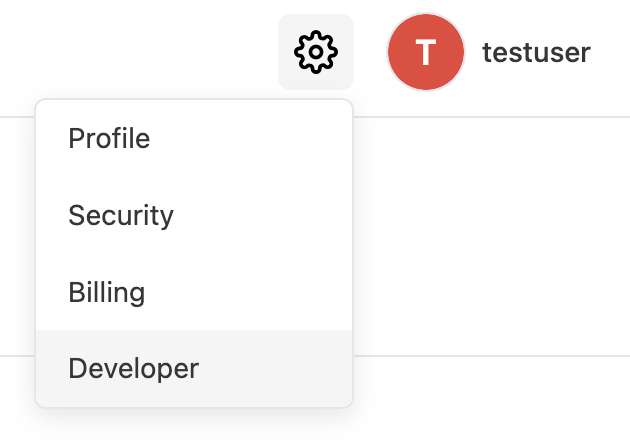
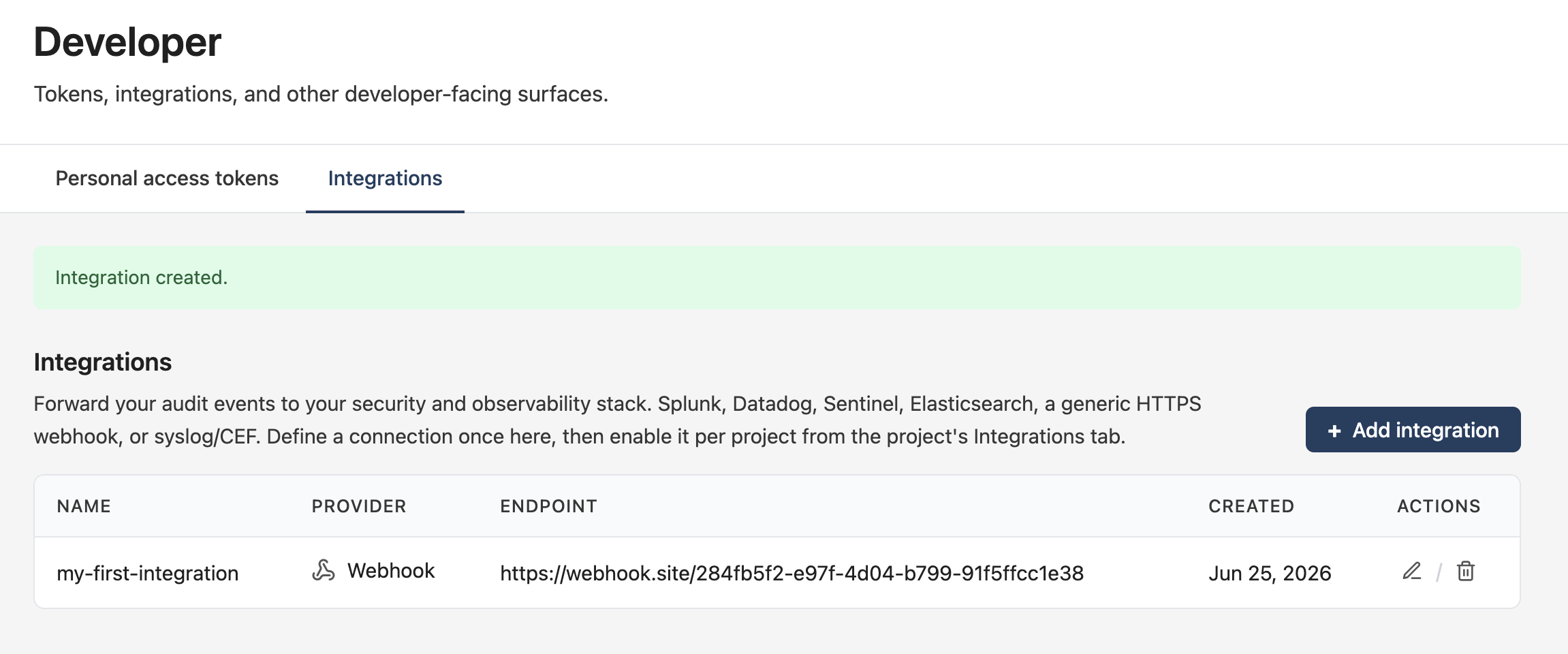
Open the settings (gear) menu and choose Developer.
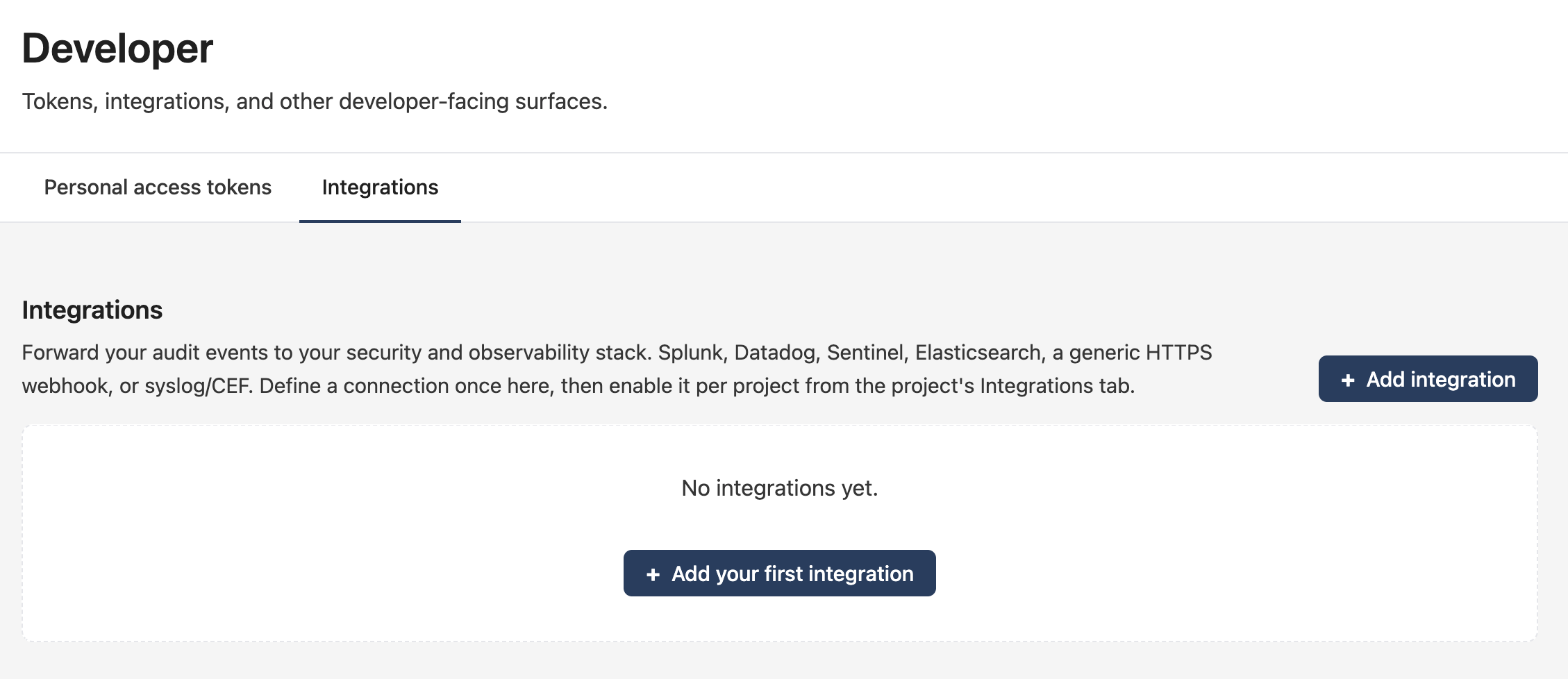
Switch to the Integrations tab and click + Add integration.
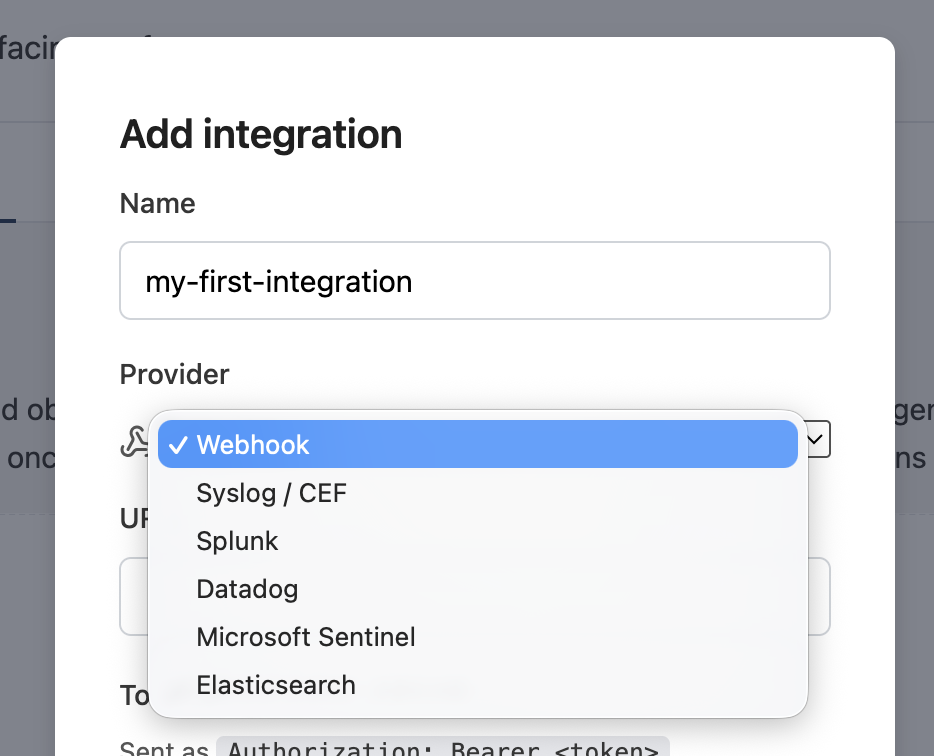
Give the connection a name and pick a Provider.
Fill in the endpoint and credentials for that provider. For a webhook that's a URL and an optional bearer Token (sent as Authorization: Bearer <token>). You can also attach Metadata: key/value pairs added to every event this connection forwards.
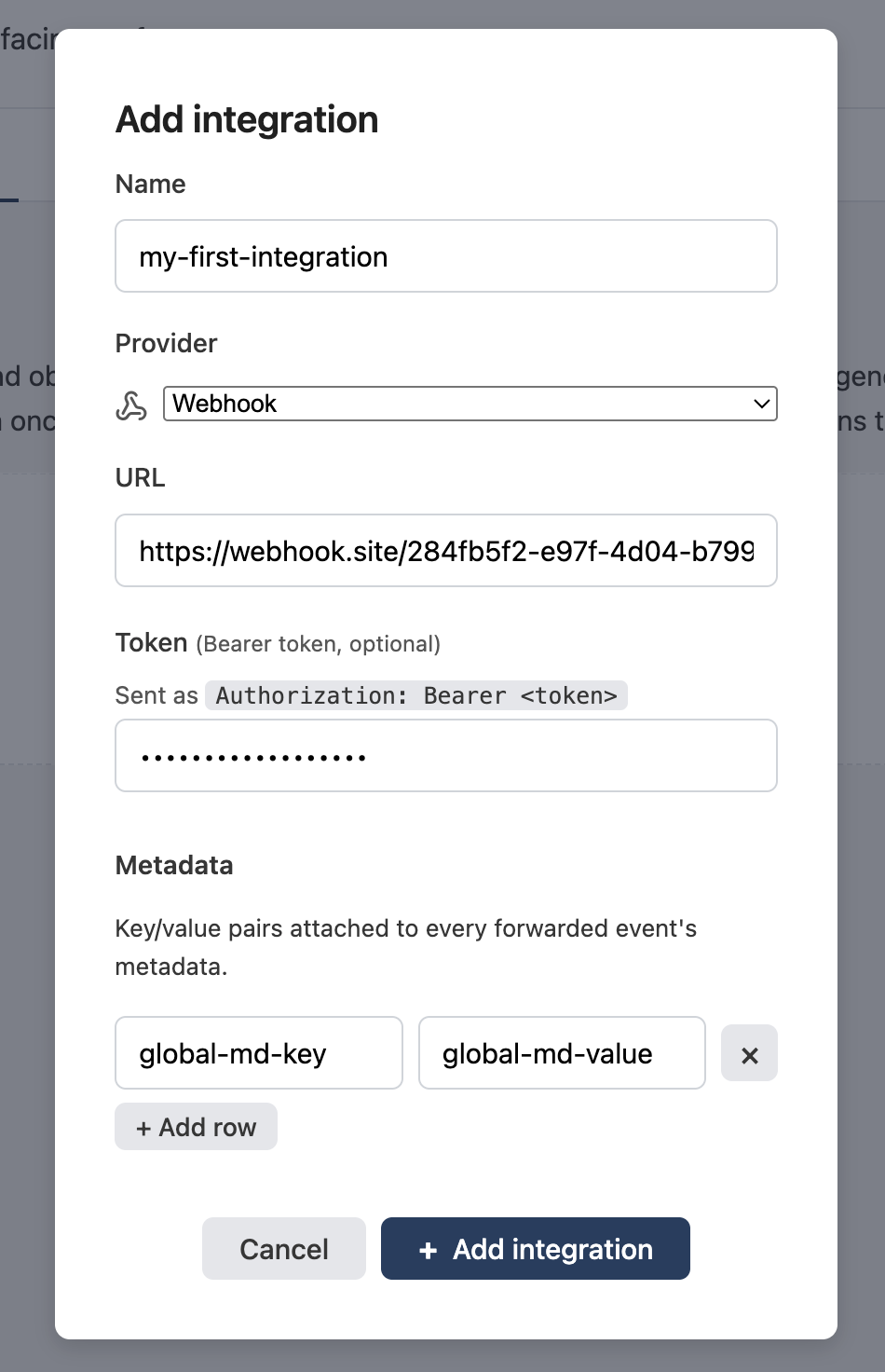
Save it and the connection appears in the registry, where you can edit or delete it later. The token is write-only: it's never shown again after you save.
Providers
Almost every SIEM accepts one of two generic shapes, so the named vendors are presets on top of those:
- Webhook. Generic JSON array over HTTPS, optional
Authorization: Bearertoken. - Syslog / CEF. RFC 5424 framing with a CEF payload, for QRadar and most on-prem appliances.
- Splunk. HTTP Event Collector.
- Datadog. Logs intake.
- Microsoft Sentinel. Azure Monitor / Log Analytics ingestion.
- Elasticsearch. The
_bulkAPI.
The presets reuse the webhook delivery path with the right auth header and body envelope for each vendor.
Enabling forwarding on a project
Open the project and go to its Integrations tab. Each account connection shows up as a card. Flip Forwarding on and click Save to start sending this project's events to that destination.
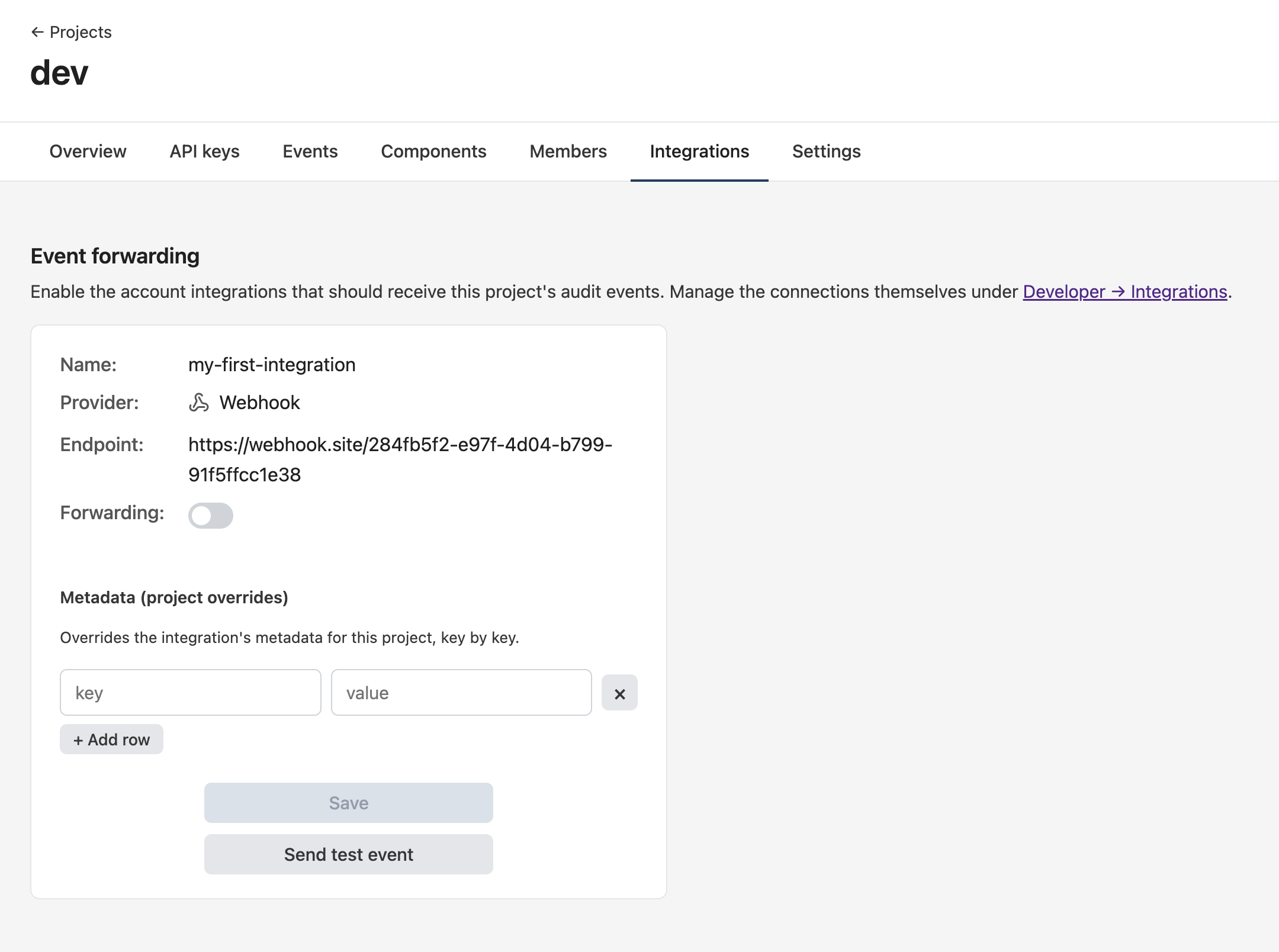
The connections themselves are managed under Developer → Integrations; this tab only chooses which ones apply to this project.
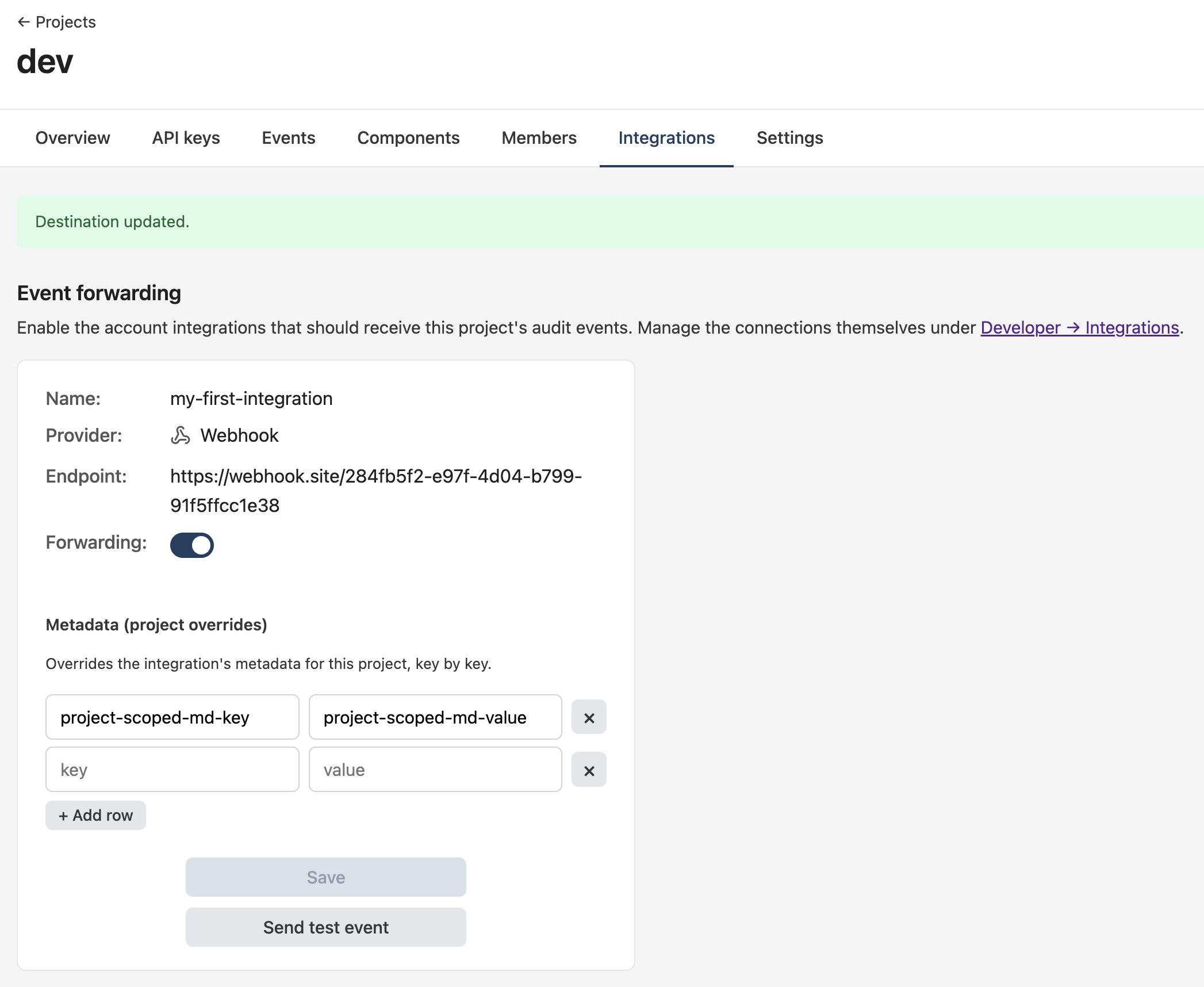
Metadata overrides
Each card has a Metadata (project overrides) section. Keys you set here override the connection's default metadata for this project, key by key. A key you set here wins; a key you leave out inherits the connection's default. Handy for tagging a source or index per project when several projects feed one connection.
Sending a test event
Send test event delivers a single synthetic event to the destination so you can confirm it's wired up before real traffic flows.
Delivery behavior
- No backfill. Forwarding only covers events ingested after you enable a destination. Turning a destination on does not replay history.
- At-least-once. Delivery runs after the event write commits, never inside it, so a slow or down SIEM can never block or roll back ingestion. A durable queue retries with backoff, which means a batch can occasionally be delivered more than once. Each event carries a stable id so your sink can de-duplicate.
- Sanitized errors. When a destination fails, the project tab surfaces a sanitized status (a code and a fixed reason) rather than the raw response, so the status line never leaks a token, URL, or response body.
Permissions
- Managing connections (create, edit, rotate token, delete) is owner-only. Connections live on your account.
- Toggling a connection on a project, setting per-project overrides, and sending a test event require admin or editor access to that project.
- Viewing a destination's delivery status is available to any project collaborator, including viewers.