Collaborators
Collaborators are the people you share projects with. Think of it as your own contact list: you add someone by email, and then you can grant them access to individual projects at a per-project role. The list is yours. If someone adds you to their list, that doesn't add them to yours, and a collaborator link on its own grants no access to anything until you share a specific project.
There are no teams, groups, or org-wide roles. Just people you collaborate with and the projects you've shared with each of them.
Everything on this page is also available from the command line. See the CLI collaborators reference.
Adding a collaborator
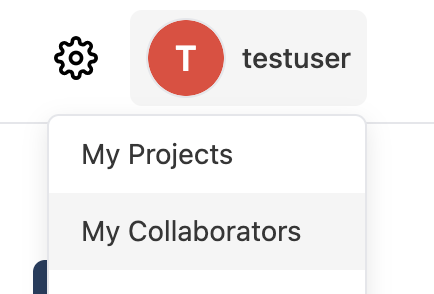
Open the avatar dropdown in the top-right and choose My Collaborators.
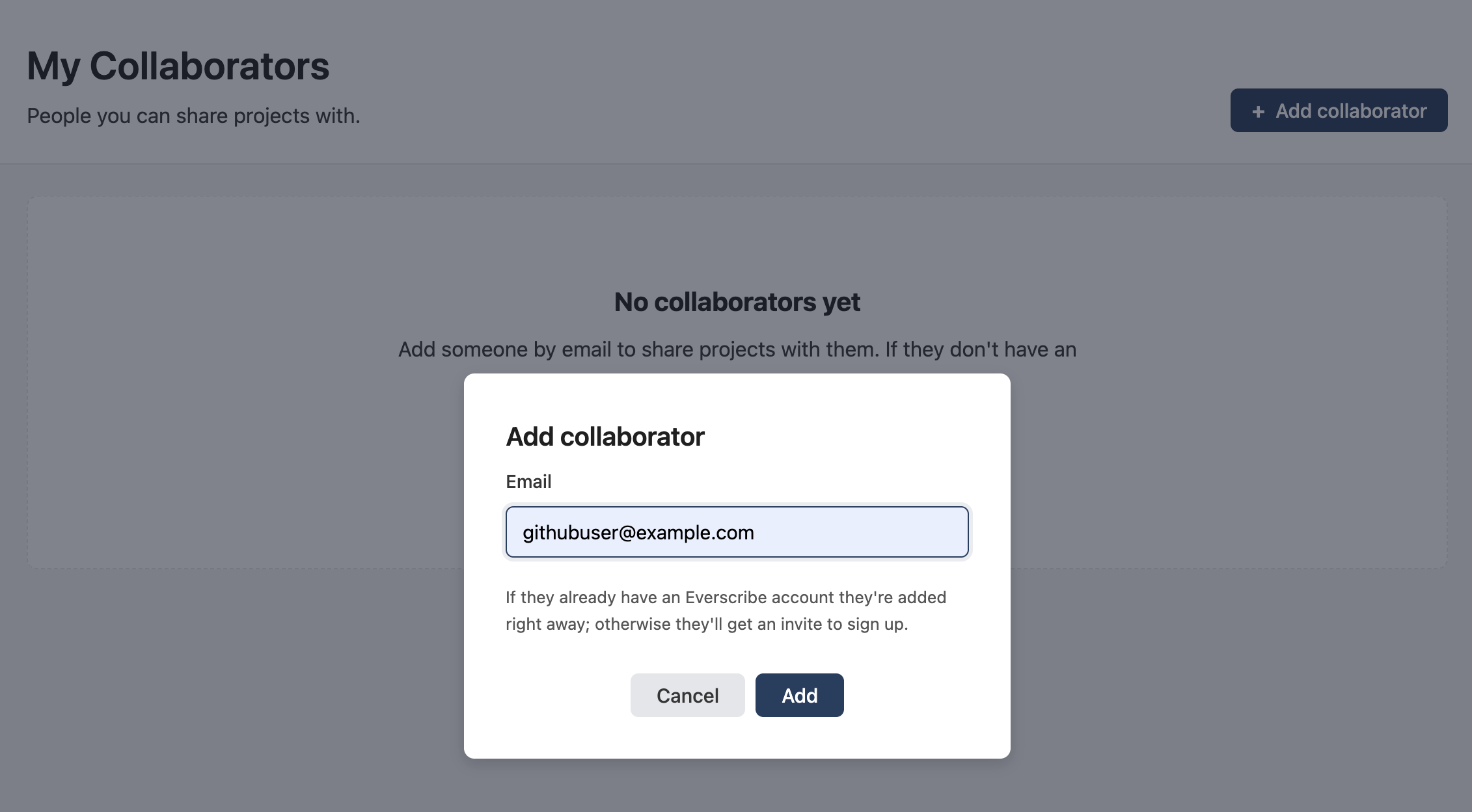
Click + Add collaborator and enter the person's email. If they already have an Everscribe account they're linked immediately; if not, they get an email inviting them to sign up.
Active vs. pending
A collaborator's status tells you whether you can share a project with them yet.
-
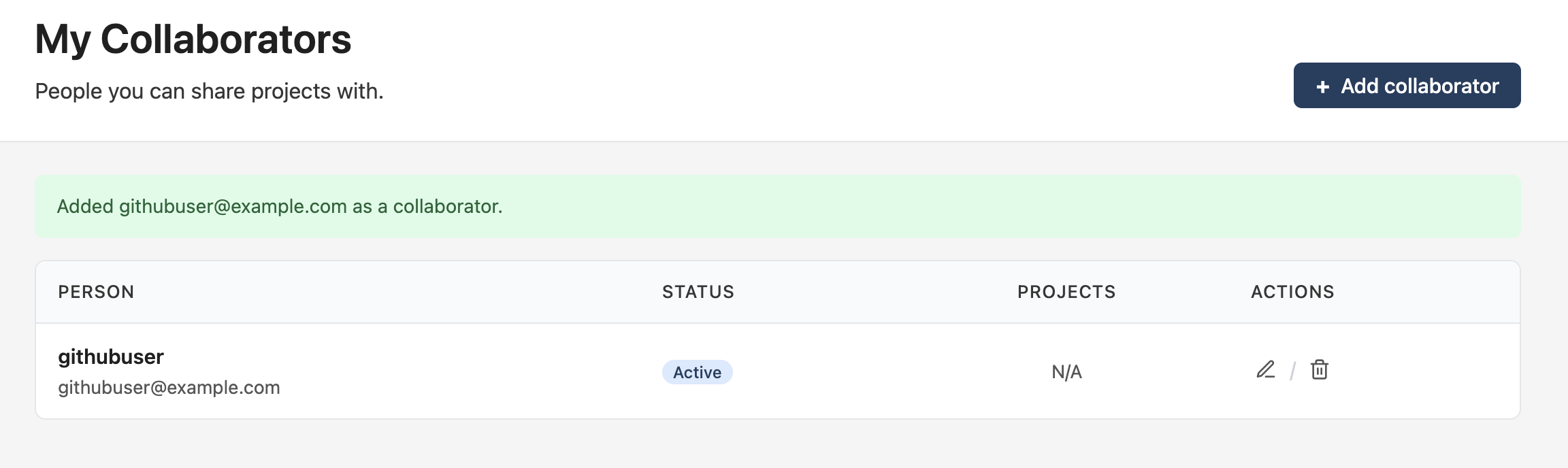
Active. The email matches a real Everscribe account. They show up with an Active badge and you can share projects with them right away.
-
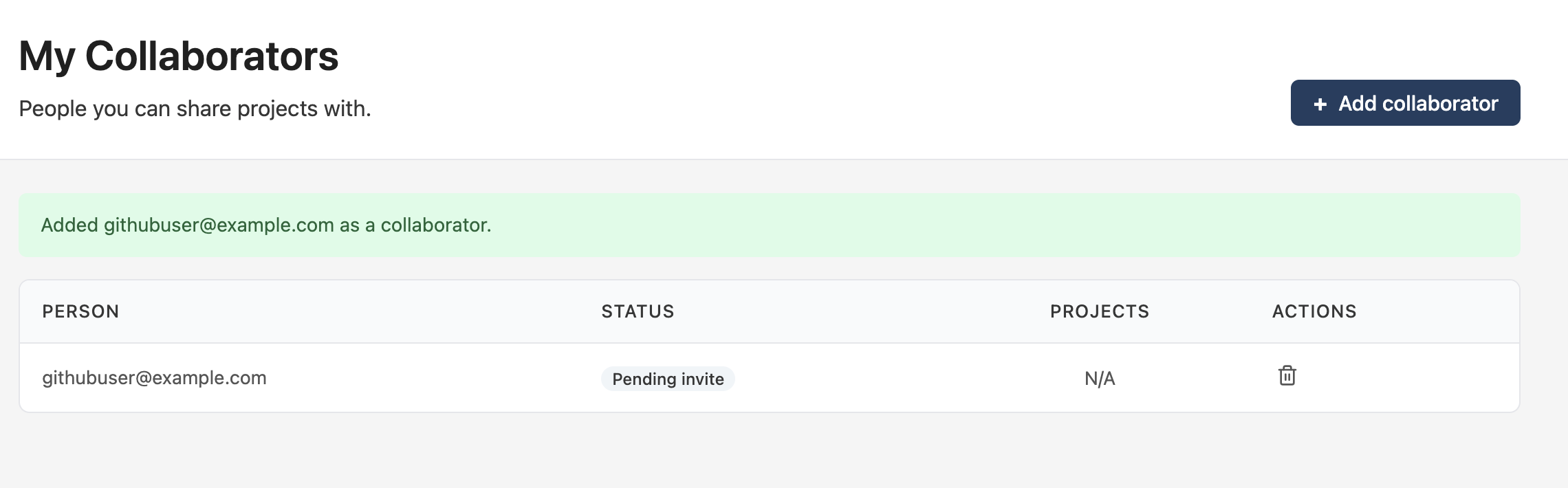
Pending invite. The email has no account yet. They keep a Pending invite badge until they sign up, at which point they flip to active automatically. You cannot share a project with a pending collaborator.
You can invite someone anytime, but the actual project grant has to wait until they're active.
Sharing a project
Every project you own has a share icon on its card on the My Projects page.
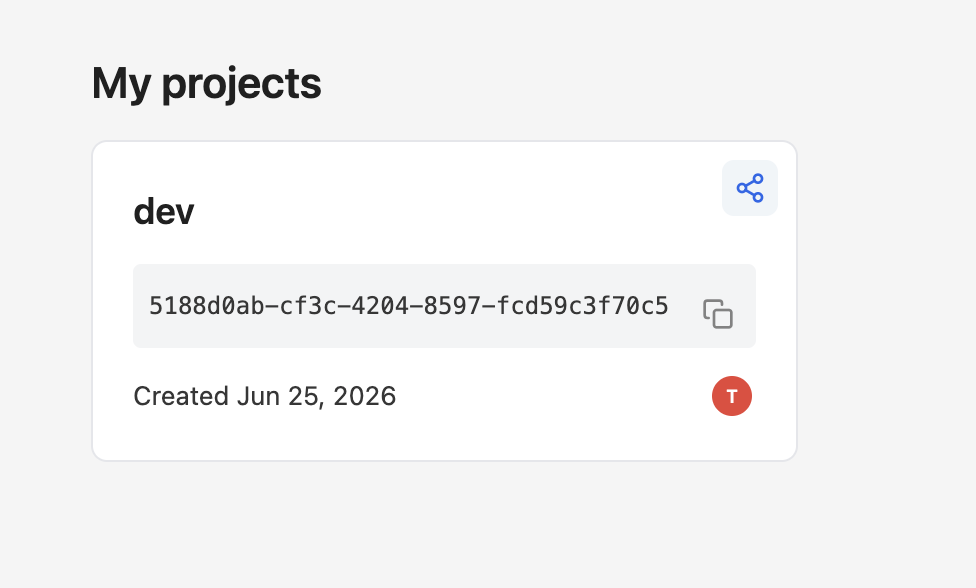
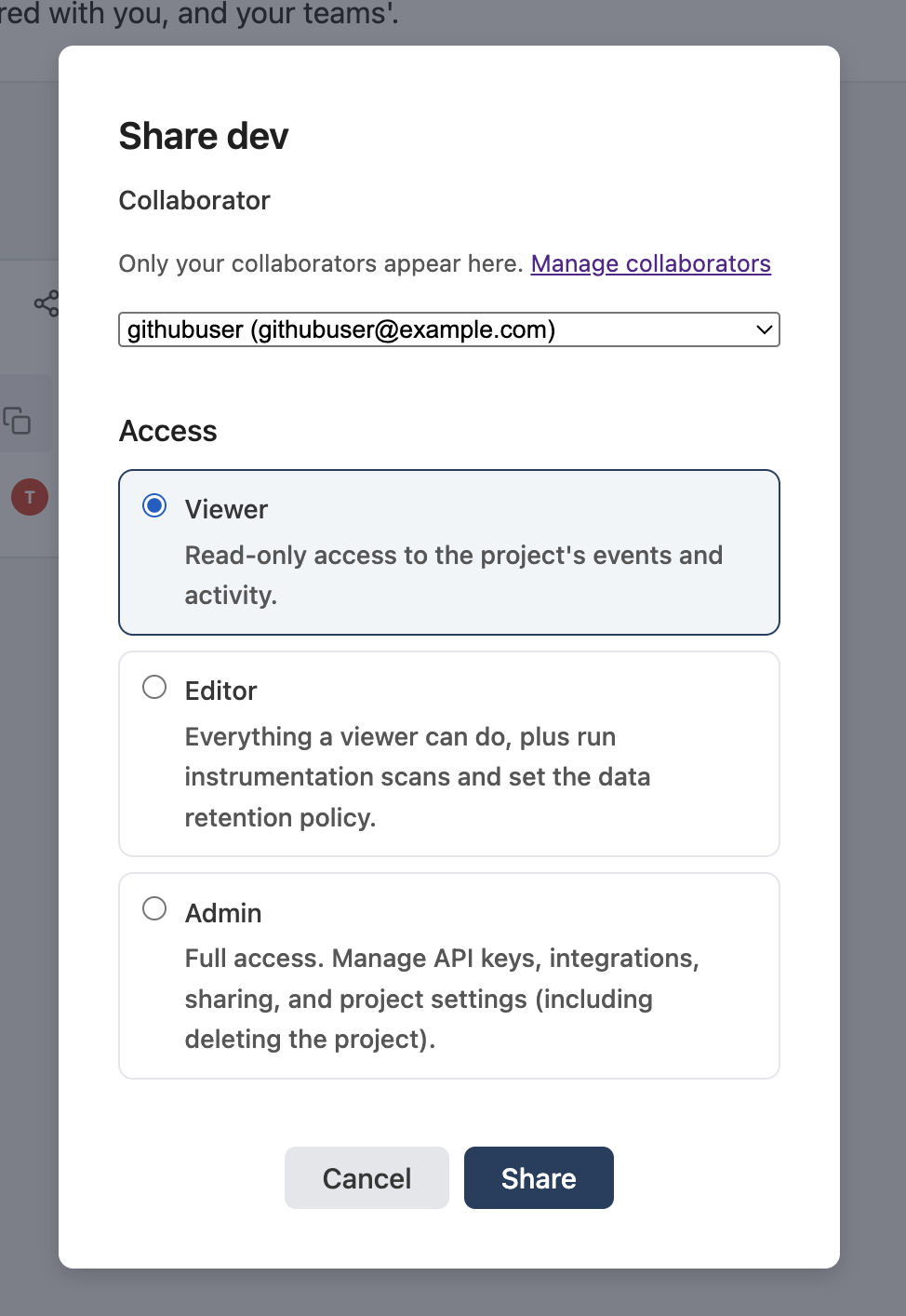
Clicking it opens the Share modal. Pick one of your active collaborators from the dropdown (only collaborators appear here, not raw emails) and choose the access level. There's a Manage collaborators link if you need to add someone new first.
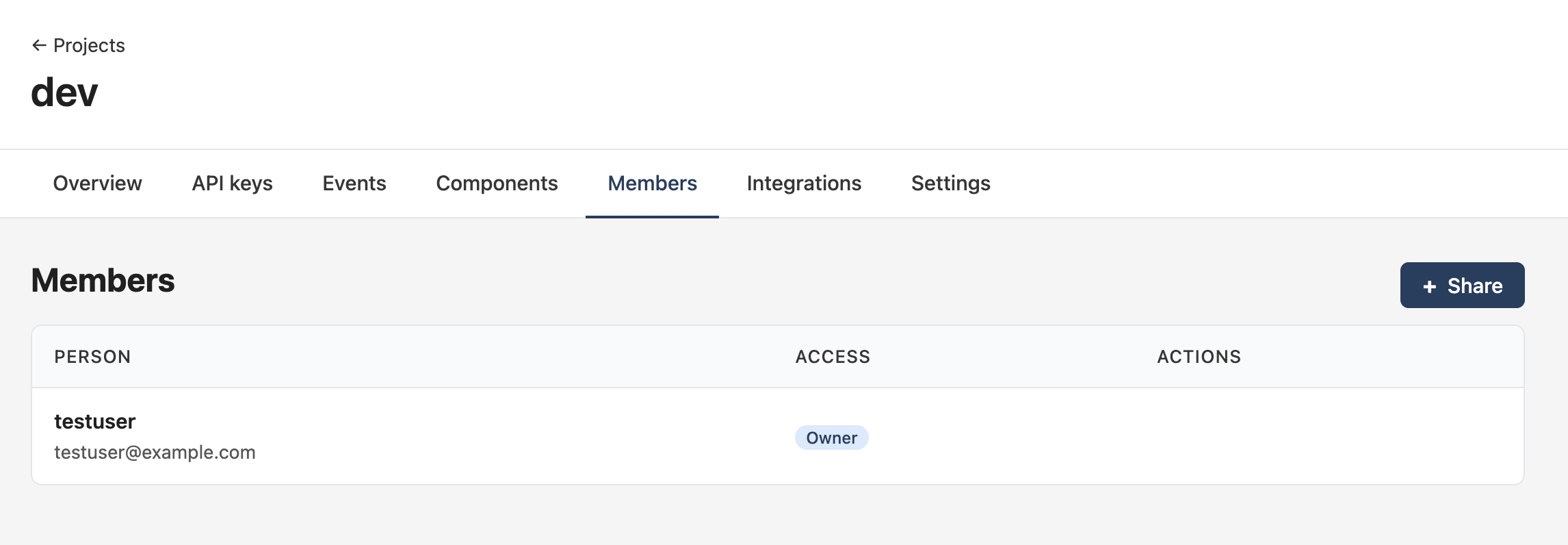
The same sharing controls live on the project's Members tab, which shows everyone who can currently touch the project and at what role. The owner always appears as Owner.
Roles
Access is granted per project. A collaborator can hold different roles on different projects.
- Viewer. Read-only access to the project's events and activity.
- Editor. Everything a viewer can do, plus run instrumentation scans and set the data retention policy.
- Admin. Full access: manage API keys, integrations, sharing, and project settings (including deleting the project).
The project owner is implicitly an admin. Only an admin (or the owner) can share a project, change roles, or remove access.
Removing a collaborator
Removing someone from your collaborator list (the trash icon on the My Collaborators page) also revokes every project grant you'd given them in the same step. Their access never outlives the relationship, so there's no need to unshare each project first.